
How to Find a BitLocker Key Without a Microsoft Account


If you are looking for a BitLocker recovery key without a Microsoft account, you may still be able to find it.
A Microsoft account is only one possible place where a BitLocker recovery key may have been saved. Depending on how the computer was configured, the key may instead be stored in a work or school account, printed on paper, saved to a USB drive, stored as a file, or held by an organization’s IT administrator.
The important thing is not to reset the computer before checking these locations if the files on the encrypted drive are important.
If the recovery key truly cannot be found anywhere, there is no supported method to recreate the original 48-digit BitLocker recovery password.
Need the general BitLocker recovery-key guide instead? See How to Find Your BitLocker Recovery Key | Windows 11 & 10. This article specifically covers what to do when you do not have a Microsoft account associated with the PC.
Can You Find a BitLocker Key Without a Microsoft Account?
Yes, but only if the existing recovery key was saved somewhere else.
BitLocker does not require your personal Microsoft account to be the only possible location for a recovery key.
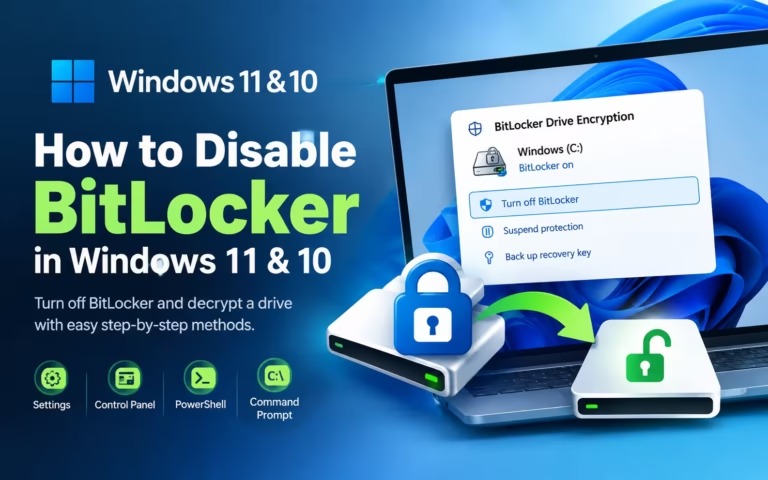
Read also: How to Disable BitLocker in Windows 11 & 10
The key may have been backed up when BitLocker or Device Encryption was configured. Where it was stored depends on how the computer was set up and whether it was personally owned or managed by an organization.
Possible locations include:
- A work or school account
- Another person’s Microsoft account
- A printed recovery-key copy
- A USB flash drive
- A saved recovery-key file
- A company or school’s recovery system
- Microsoft Entra ID
- Active Directory Domain Services
This is why “I don’t have a Microsoft account” does not automatically mean “my BitLocker key is lost.”
The goal is to determine where the existing key may have been backed up.
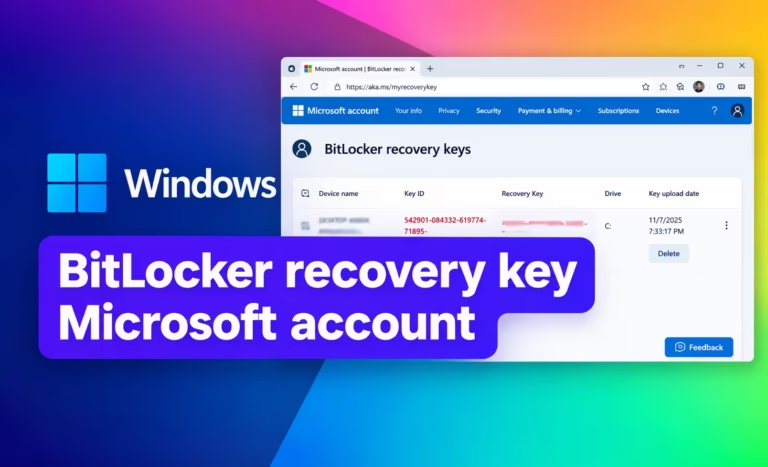
If you do have access to the Microsoft account that was associated with the PC, use our dedicated guide instead: Find a BitLocker Recovery Key in a Microsoft Account.
Where Your BitLocker Recovery Key May Be Stored Instead
When Windows asks for a BitLocker recovery key, start by checking the places below.
The best place to start depends on how the computer was originally configured.
Work or school account
If this is a work, school, or organization-managed computer, the recovery key may be associated with your work or school account rather than a personal Microsoft account.
Microsoft supports storing BitLocker recovery information in Microsoft Entra ID for supported organization-managed devices. Administrators can also store recovery information in Active Directory Domain Services.
If you can sign in to the organization’s account, check whether the recovery information is available there.
If you cannot access it yourself, contact the organization’s IT department.
Give the administrator the information displayed on the BitLocker recovery screen, particularly the Recovery Key ID.
Do not assume that because you never created a personal Microsoft account, the organization cannot have a copy of your recovery key.
Another person’s Microsoft account
A computer can be configured by someone other than its current user.
For example, the PC may have been:
- Purchased and configured by a family member
- Set up by a previous owner
- Configured by a technician
- Prepared by an employer or school
If someone else originally configured Windows or enabled encryption, ask whether they backed up the BitLocker recovery key to their Microsoft account.
This is a different situation from the one covered by our dedicated Microsoft account BitLocker recovery-key guide.
The important question is not simply “Do I have a Microsoft account?”
It is:
“Was the recovery key saved to an account belonging to someone who configured this computer?”
Printed recovery key
Check for a printed copy of the recovery key.
A BitLocker recovery key can be printed when encryption is configured. The printed document may contain the 48-digit recovery password together with identifying information.
Check places where important computer documents may have been stored.
For example, look through:
- Computer paperwork
- Backup documents
- Security records
- Files kept by the person who configured the PC
The recovery password is what you need to unlock the drive.
Do not mistake the Recovery Key ID for the recovery password. The ID helps identify the correct key; it is not the 48-digit password itself.
USB flash drive
The recovery key may have been saved to a USB drive.
Think about USB drives that were connected to the computer when BitLocker was first configured.
If you find a likely USB drive, connect it to another working computer if the locked PC cannot access Windows.
Look for a saved recovery-key file.
Microsoft supports saving BitLocker recovery information to a USB flash drive, so an old USB device should not be overlooked simply because you no longer remember using it for BitLocker.
Saved recovery-key file
The recovery key may have been saved as a file rather than printed.
Check other storage locations you have used for backups, including:
- Another computer
- External hard drives
- USB drives
- Cloud storage
- Backup folders
- Documents belonging to the person who configured the PC
Search for files containing terms such as:
BitLocker
Recovery Key
Recovery
If you find several BitLocker recovery keys, compare their Recovery Key IDs with the ID shown on the BitLocker recovery screen.
This is particularly useful when several computers or drives have been backed up in the same location.
Company or school IT department
If the computer belongs to an organization, contact IT before attempting a reset.
An organization may have backed up the recovery information centrally.
Microsoft documents recovery-key management through Microsoft Entra ID and Active Directory Domain Services for organizations using supported BitLocker configurations.
An administrator may be able to locate the correct recovery password using information from the BitLocker recovery screen.
This is one of the most important alternatives to a personal Microsoft account.
If the computer contains business, school, or other important files, do not assume that resetting it is your only option until the organization has checked its recovery systems.
Use the BitLocker Recovery Key ID to Match the Right Key
The Recovery Key ID is particularly useful when you do not have a personal Microsoft account.
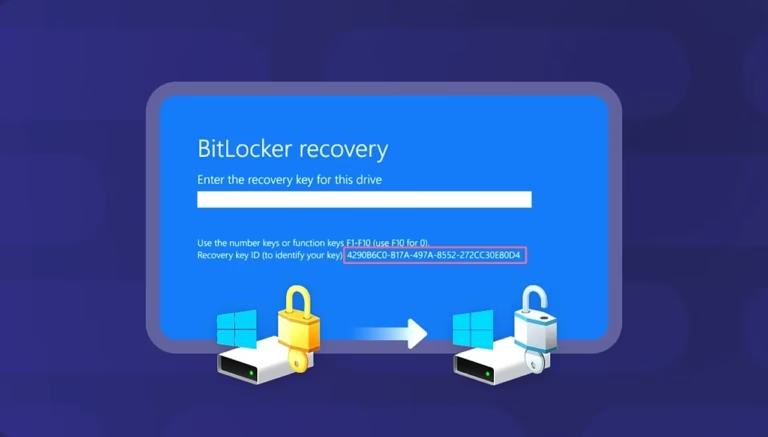
When BitLocker enters recovery mode, Windows displays information that identifies the recovery request.
Look for the Recovery Key ID on the screen.
The Recovery Key ID is not your BitLocker recovery password.
Instead, it helps you identify which stored recovery key belongs to the encrypted drive.
For example, imagine that you find three saved recovery keys:
Recovery Key ID: 12345678
Recovery Key ID: 87654321
Recovery Key ID: 24681357
If the BitLocker recovery screen shows:
Recovery Key ID: 87654321you know which stored recovery key to use.
This becomes especially useful if a family member, technician, school, or company has saved recovery keys for multiple computers.
What if the recovery key ID does not match?
Do not randomly try recovery keys.
A recovery key is associated with a particular BitLocker recovery configuration. If you have several keys, continue checking the available records for one that matches the Recovery Key ID displayed by Windows.
If the computer is managed by an organization, provide the Recovery Key ID to the IT administrator.
The ID can help the administrator locate the corresponding recovery password in the organization’s recovery system.
What If You Never Saved a BitLocker Recovery Key?
This is where the situation becomes more serious.
If the recovery key was never backed up somewhere you can access, and no organization has a copy, there is no supported way to reconstruct the original recovery password.
BitLocker is specifically designed to protect encrypted data from unauthorized access.
The recovery password is not something that can simply be calculated from the Recovery Key ID.
Microsoft states that its support team cannot retrieve or recreate a lost BitLocker recovery key.
Therefore, if you have checked every realistic backup location and the key is genuinely gone, there is no legitimate “secret” recovery method that will generate the missing 48-digit key.
Before concluding that it is lost, however, check:
- Work or school accounts
- Another person’s account
- Printed documents
- USB drives
- Saved files
- External backups
- Cloud storage
- Company or school IT systems
If someone else originally configured the computer, ask them specifically about the BitLocker recovery key.
Can CMD or PowerShell Recover a Lost BitLocker Key?
No, not if the recovery key is genuinely lost.
You may find websites recommending CMD commands, PowerShell commands, or third-party programs as a way to “recover” a missing BitLocker password.
Be careful with these claims.
Windows commands can display BitLocker information or manage BitLocker when you have the necessary access and credentials. They do not magically reconstruct a recovery password that was never saved or is no longer accessible.
For organization-managed computers, administrators can use Microsoft’s supported management tools to retrieve recovery information that was previously backed up to systems such as Microsoft Entra ID or Active Directory.
That is different from generating a lost key.
The distinction is simple:
Retrieving an existing recovery key is possible in supported situations. Reconstructing a key that no longer exists is not.
Do not pay for software that promises to turn a Recovery Key ID into the missing 48-digit recovery password.
What Happens If You Reset Windows Without the Key?
If the important files are on the BitLocker-protected drive, do not reset Windows just because you cannot find the recovery key.
First, exhaust the possible recovery-key locations.
A Windows reset is a recovery option for the computer, not a method for discovering a missing BitLocker recovery password.
Microsoft’s recovery documentation provides different reset options, including options that preserve personal files and options that remove them. The exact recovery path can also depend on how Windows and BitLocker are configured.
If you are considering a reset because the computer is stuck at the BitLocker recovery screen, understand the consequence first:
Recovering the computer and recovering the encrypted files are two different problems.
A reset may allow you to get the computer running again, but it does not reveal the old BitLocker recovery key or give you access to encrypted data that you cannot unlock.
If the files matter, keep searching for the key before proceeding.
What Is the Difference Between a Recovery Key and a Recovery Key ID?
The BitLocker recovery key is the 48-digit numerical password used to unlock the encrypted drive during recovery.
The Recovery Key ID is an identifier used to help locate or distinguish the correct recovery key.
Think of the ID as a label and the recovery key as the actual password.
For example:
Recovery Key ID
12345678

Recovery Password
123456-123456-123456-123456-123456-123456-123456-123456
The exact displayed formatting can vary, but the important distinction remains the same:
You need the recovery password. The ID helps you find the right one.
BitLocker Recovery Without Microsoft Account FAQs
Can I find a BitLocker recovery key without a Microsoft account?
Yes. A BitLocker recovery key may have been saved to a work or school account, another person’s account, a printed document, a USB drive, a file, or an organization’s recovery system.
Where can I find a BitLocker key if I used a local Windows account?
Check whether the recovery key was saved separately from your Windows login. Look for a printed copy, USB backup, saved file, another person’s account, or an organization’s recovery system.
Using a local Windows account does not by itself tell you where the BitLocker recovery key was stored.
Can I recover a BitLocker key without an account?
Possibly. You may not need an account if the recovery key was printed, saved to a USB drive, stored as a file, or provided to you by an administrator.
The important question is whether an existing copy of the recovery key can still be found.
Can CMD recover my lost BitLocker recovery key?
No. CMD cannot reconstruct a genuinely lost BitLocker recovery key. It can manage or display certain BitLocker information when the required access and recovery information already exist.
Can PowerShell generate my missing BitLocker recovery key?
No. PowerShell cannot generate the original recovery password from a Recovery Key ID or encrypted drive.
It can be used for supported BitLocker management tasks, but that is different from reconstructing a lost recovery key.
Is the BitLocker Recovery Key ID the password?
No. The Recovery Key ID identifies the recovery key. The actual BitLocker recovery password is the 48-digit number required during recovery.
Can my work or school find my BitLocker recovery key?
Possibly. If the device is managed by an organization and its recovery information was backed up, an authorized administrator may be able to locate the recovery password.
Give the administrator the Recovery Key ID displayed on your BitLocker recovery screen.
What if I cannot find my BitLocker recovery key anywhere?
If the key is genuinely unavailable and no organization or other person has a copy, Microsoft does not provide a method for recreating it.
Before giving up, check every possible backup location and anyone who may have originally configured the computer.
Will resetting Windows give me my BitLocker key?
No. Resetting Windows does not reveal or recreate a missing BitLocker recovery key.
If your encrypted files are important, look for the recovery key before resetting the computer.
The Bottom Line
You do not need a personal Microsoft account to have a BitLocker recovery key.
If you are locked out of a BitLocker-protected drive and never used a Microsoft account, check the alternatives:
Work or school account → another person’s account → printed copy → USB drive → saved file → organization IT.
Use the Recovery Key ID shown on the BitLocker recovery screen to identify the correct key when several keys are available.
If none of these locations contains the recovery key, there is no supported CMD command, PowerShell command, or third-party program that can recreate the missing 48-digit password.
And if the encrypted files matter, do not rush into resetting Windows. Finding the existing recovery key should come before taking an action that could make the data inaccessible.


This is a really useful breakdown, especially for people who assume a Microsoft account is the only place a BitLocker recovery key can exist. I also like the clarification between the Recovery Key ID and the actual 48-digit recovery password – that’s an easy detail to overlook when you’re locked out. The reminder not to reset Windows before checking every possible backup location is probably the most important takeaway. Clear and practical guide.