
How to Find Your BitLocker Recovery Key in Microsoft Account

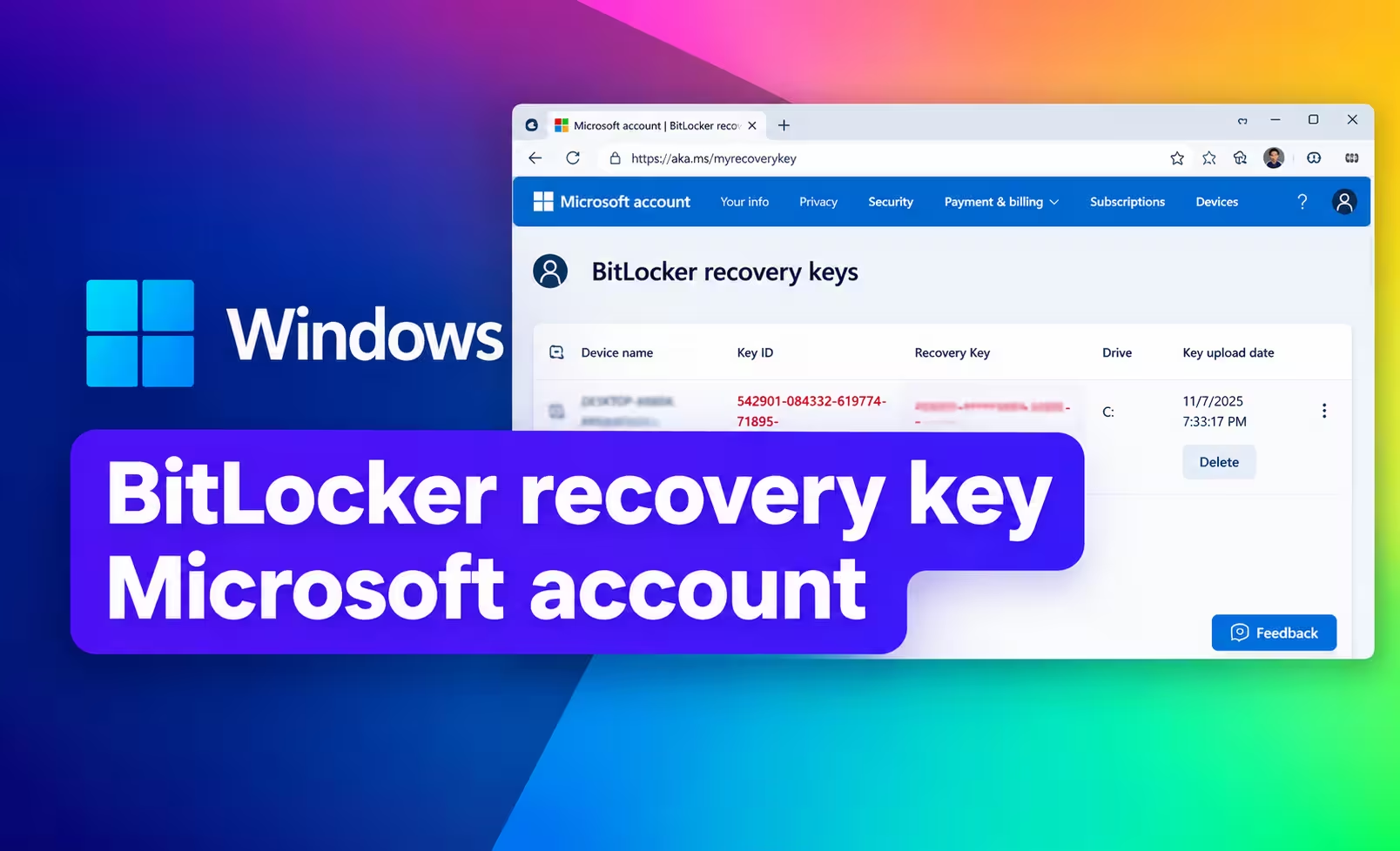
If Windows is asking for your BitLocker recovery key, you may be able to find it online through your Microsoft account. The recovery key is a unique 48-digit number that can unlock the encrypted drive when Windows cannot unlock it automatically.
For most personal Windows 11 and Windows 10 PCs, the quickest place to check is your Microsoft account. You can open the recovery key page from another phone, tablet, or computer, sign in, and match the saved key to the Recovery Key ID shown on your locked PC.
This guide walks you through that process step by step.
How to Find Your BitLocker Recovery Key in Your Microsoft Account
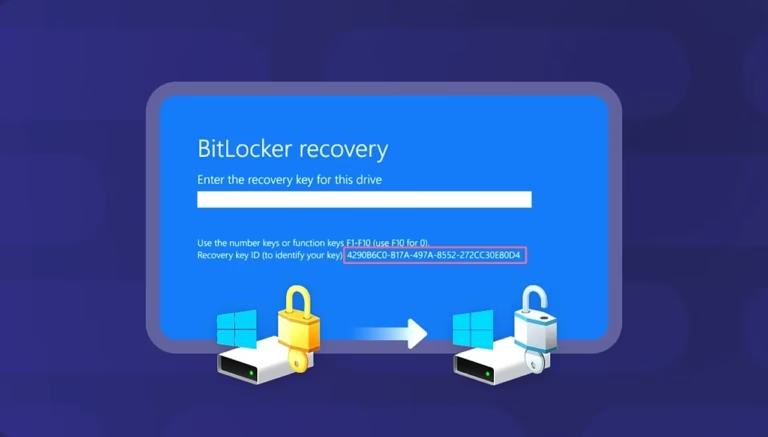
Before you start, look at the BitLocker recovery screen on your locked computer and find the Recovery Key ID.
You do not need to enter the Recovery Key ID into Windows. It is used to identify which saved 48-digit recovery key belongs to your encrypted drive. Microsoft recommends noting the first 8 characters of the Recovery Key ID when you are asked for the recovery key.
You will then use that ID to find the matching key in your Microsoft account.
Quick steps
- Open the Microsoft BitLocker recovery key page on another device.
- Sign in to the Microsoft account that may contain the key.
- Find the recovery key whose ID matches the one on your BitLocker screen.
- Enter the matching 48-digit recovery key into Windows.
If you are ready, start with Step 1.
Step 1: Open Your BitLocker Recovery Keys Online
You do not need access to the locked Windows PC to check your Microsoft account. Use another device that can access the internet, such as your phone or another computer.
Open the official Microsoft recovery key page:
Microsoft BitLocker recovery keys
This takes you to the Microsoft account page where recovery keys backed up to your personal Microsoft account can be displayed. Microsoft specifically directs users to this page when looking for a BitLocker recovery key stored in a Microsoft account.
Before moving on, keep the BitLocker recovery screen visible on the locked PC if possible. You will need the Recovery Key ID from that screen to identify the correct key.
Where is the Recovery Key ID?
On the BitLocker recovery screen, look for text similar to:
Recovery Key ID: 12345678-...
You generally only need the first 8 characters of the ID for matching the key in your account.
For example, if the screen shows:
Recovery Key ID: 12345678-90AB-CDEF-1234-567890ABCDEF
record:
12345678
Do not confuse this ID with the actual recovery key. The ID identifies the correct key. The recovery key itself is the 48-digit number you will eventually enter into Windows.
Step 2: Sign In to the Microsoft Account That May Have Your Key
When Microsoft asks you to sign in, use the personal Microsoft account that is associated with the Windows PC.
Read also: How to Disable BitLocker in Windows 11 & 10
This could be the Microsoft account you normally use to sign in to Windows, but it is not always safe to assume that every account associated with the computer contains the recovery key.
For example, the key could belong to:
- The Microsoft account originally used to set up the PC
- Another Microsoft account that was used when BitLocker or Device Encryption was activated
- The Microsoft account of another person who originally configured the computer
Microsoft specifically notes that if someone else set up the device or turned on BitLocker, the recovery key might be stored in that person’s Microsoft account.
What if you have more than one Microsoft account?
If you regularly use multiple Microsoft accounts, check them one at a time.
This is particularly useful if:
- You recently changed Microsoft accounts on the PC
- Someone else originally set up the computer
- The PC was previously owned by another person
- You have separate personal and work accounts
- You cannot find any recovery keys after signing in
Do not assume that the first account you try is the correct one.
Can Windows tell you which Microsoft account to use?
On Windows 11 version 24H2 and later, the BitLocker recovery screen can display a hint about the Microsoft account associated with a recovery key when that key was saved to a Microsoft account.
If your recovery screen shows an account hint, use it to help identify the correct account.
Step 3: Match the Recovery Key ID
After signing in, look through the BitLocker recovery keys listed in your Microsoft account.
You may see more than one recovery key. This is where the Recovery Key ID becomes important.
Find the saved key whose Recovery Key ID begins with the same first 8 characters shown on your locked computer.
For example:
BitLocker screen
Recovery Key ID: 12345678-90AB-CDEF-1234-567890ABCDEF
Microsoft account
Key ID: 12345678-...
Those matching characters indicate that you have found the recovery key associated with the BitLocker prompt.
Why should you match the Key ID?
A Microsoft account can contain multiple BitLocker recovery keys. Choosing a key simply because it appears to belong to the right computer can lead you to use the wrong recovery key.
The Recovery Key ID gives you a more reliable way to identify the correct one. Microsoft specifically recommends using the ID to identify which recovery key to use when multiple keys exist.
Important: The Recovery Key ID is not the password you enter into Windows.
You need the separate 48-digit recovery key associated with that ID.
Step 4: Enter the Matching 48-Digit Recovery Key
Once you have found the recovery key with the matching Recovery Key ID, use the 48-digit recovery key shown with it.
Return to the BitLocker recovery screen on your locked PC and enter the 48-digit number.
Make sure you are using the key associated with the matching Recovery Key ID before submitting it.
If the correct recovery key is accepted, Windows should continue past the BitLocker recovery screen and allow the encrypted drive to unlock.
Microsoft describes the BitLocker recovery key as a unique 48-digit numerical password used to unlock an encrypted drive.
Recovery Key ID vs. recovery key
These two numbers have different purposes:
| Item | Purpose |
|---|---|
| Recovery Key ID | Helps you identify which saved recovery key belongs to the locked drive |
| 48-digit recovery key | The actual key you enter to unlock the BitLocker-protected drive |
If Windows is asking you to enter a recovery key, do not enter the Recovery Key ID. Find the matching 48-digit recovery key instead.
What If Your BitLocker Key Is Not Listed?
If you sign in to your Microsoft account and cannot find the expected recovery key, do not immediately assume that the key is gone.
There are several possibilities.
You signed in to the wrong Microsoft account
If you have multiple Microsoft accounts, sign out and check the other accounts that may have been used with the PC.
Pay particular attention to the account used when Windows was originally set up or when BitLocker or Device Encryption was enabled.
Someone else set up the computer
If another person configured the PC, the recovery key may have been saved to their Microsoft account.
This can happen with a computer purchased from someone else, a family member’s computer, or a PC that another person originally configured. Microsoft specifically identifies this as a possibility.
The key belongs to a work or school account
If the computer has been connected to an organization, the recovery key may be stored in the organization’s account rather than your personal Microsoft account.
Microsoft provides a separate recovery process for work and school accounts.
If that applies to your computer, follow the appropriate organization recovery process rather than repeatedly checking personal Microsoft accounts.
The key was saved somewhere else
Depending on how BitLocker was activated, the recovery key may have been saved or printed instead of being stored in your personal Microsoft account.
Microsoft lists other possible locations such as a printed recovery key or a USB flash drive containing the saved key.
If you need to check those possibilities, see our complete guide on how to find your BitLocker recovery key for the broader recovery options.
Which Microsoft Account Stores the BitLocker Recovery Key?
There is no universal rule that says every BitLocker recovery key must be stored in the Microsoft account of the person currently using the PC.
It depends on how BitLocker or Device Encryption was activated.
For example, Microsoft explains that when Device Encryption is automatically enabled, the recovery key can be saved to the Microsoft account or work/school account associated with the device. If an administrator manually activates Device Encryption, the key can instead be associated with the administrator’s account.
That is why checking the account you normally use is a good starting point, but it is not always the end of the process.
Can You Find a BitLocker Recovery Key Online?
Yes, if the recovery key was backed up to a Microsoft account, you can retrieve it online.
The simplest route for a personal Microsoft account is the official recovery page:
Microsoft BitLocker recovery keys
You can access the page from another computer or mobile device, sign in, and look for the recovery key that matches the Recovery Key ID shown on your locked PC.
The important limitation is that Microsoft cannot create a replacement BitLocker recovery key for an encrypted drive if the original key has been lost. Microsoft Support states that it cannot retrieve, provide, or recreate a lost BitLocker recovery key.
What If Microsoft Shows No Recovery Key at All?
If the Microsoft account recovery page contains no matching key, work through these checks before giving up:
- Check whether you signed in to the correct Microsoft account.
- Check other Microsoft accounts that may have been used on the PC.
- Look at the BitLocker screen for a Microsoft account hint if you are using Windows 11 version 24H2 or later.
- Ask the person who originally set up the PC whether the key was saved to their account.
- If the PC was connected to a company or school, check with the organization or IT administrator.
- Check whether the key was printed or saved to a USB drive.
- Use the Recovery Key ID to make sure you are looking for the correct key.
If you still cannot locate the key, our complete guide to what to do when you cannot find your BitLocker recovery key covers the other recovery paths and the limitations you need to know.
BitLocker Microsoft Account FAQs
How do I find my BitLocker key in my Microsoft account?
Open the Microsoft BitLocker recovery key page, sign in to the Microsoft account that may contain the key, and find the saved recovery key whose Recovery Key ID matches the ID displayed on your BitLocker recovery screen.
Where is my BitLocker recovery key online?
For a personal Microsoft account, start with the official Microsoft recovery page at aka.ms/myrecoverykey. If your key was backed up to that account, it should be listed there.
How do I access my Microsoft recovery key from another computer?
You can use another computer or mobile device to open the Microsoft recovery key page and sign in to your account. You do not need to unlock the BitLocker-protected PC first.
What if I have multiple BitLocker recovery keys?
Use the Recovery Key ID shown on your locked PC to identify the correct key. Compare the first 8 characters of the Recovery Key ID with the IDs listed in your Microsoft account.
How do I know which Microsoft account has my BitLocker key?
Start with the Microsoft account normally associated with the PC. If the key is not there, check other accounts that may have been used to set up the device or activate BitLocker. If someone else configured the PC, the key may be stored in their account. Windows 11 version 24H2 and later may also show an account hint on the recovery screen.
Can I find my BitLocker key online without the locked computer?
Yes. If the key was backed up to your Microsoft account, you can use another internet-connected device to access the recovery key page and retrieve it.
Can Microsoft give me a new BitLocker recovery key?
No. Microsoft Support cannot retrieve, provide, or recreate a lost BitLocker recovery key.
Still Can’t Find Your BitLocker Recovery Key?
Finding the key in a Microsoft account is usually one of the easiest recovery options, but it is not the only place a BitLocker key can be stored.
If your key is not listed, the next step is to determine where the key was originally saved and whether the PC is a personal or organization-managed device.
For a broader recovery checklist, continue with our guide to finding your BitLocker recovery key. If you already know that your Microsoft account does not contain the key, move on to the guide covering what to do when your BitLocker recovery key cannot be found.
The most important thing is not to guess at recovery keys. Use the Recovery Key ID to identify the correct 48-digit key before entering it into Windows.



This guide came in handy because I didn’t realize the Recovery Key ID and the actual BitLocker recovery key were two different things. The explanation about checking the first 8 characters to find the matching key makes the process much less confusing, especially if there are multiple keys in the Microsoft account. The section on what to do if the key isn’t listed is also a useful addition.