
How to Find Your BitLocker Recovery Key | Windows 11 & 10


If Windows is asking for your BitLocker recovery key, you need the correct 48-digit key to unlock the encrypted drive. The fastest way to find it is to first note the first eight characters of the Recovery Key ID shown on the BitLocker recovery screen, then check where the key was originally saved.
Your key may be in your Microsoft account, work or school account, a printed copy, a USB drive, or a saved file. If someone else set up the computer, the key may be stored in their account instead.
This guide covers the main recovery paths for Windows 11 and Windows 10, so you can identify where your key is likely to be before trying more complicated troubleshooting.
Important: Microsoft cannot retrieve, provide, or recreate a lost BitLocker recovery key. If you cannot locate the key, do not assume that Microsoft Support can generate a replacement.
What Is a BitLocker Recovery Key?
A BitLocker recovery key is a unique 48-digit numerical recovery password used to unlock a BitLocker-encrypted drive when Windows cannot automatically unlock it.
BitLocker normally uses your device’s security hardware and startup configuration to unlock the drive. If Windows detects a change that prevents the normal unlock process, it can enter BitLocker recovery mode and ask for the recovery key.
The recovery key is different from your normal Windows password, PIN, or Microsoft account password. You need the specific recovery key associated with the encrypted drive.
BitLocker recovery can be triggered by events such as certain hardware, firmware, boot, TPM, Secure Boot, or configuration changes. That does not necessarily mean that someone has attacked your computer; legitimate changes can also cause Windows to request recovery.
Where Can You Find Your BitLocker Recovery Key?
If you are currently looking at the BitLocker recovery screen, do not start guessing keys. First record the Recovery Key ID.
1. Record the first 8 characters of the Recovery Key ID
On the BitLocker recovery screen, look for the Recovery Key ID.
Write down its first eight characters.
You need this because a Microsoft account or organization can contain more than one BitLocker recovery key. The Recovery Key ID helps you identify the key that belongs to the locked drive.
For example, you may see something similar to:
Recovery Key ID

A1B2C3D4-....
You would record:
Read also: How to Disable BitLocker in Windows 11 & 10
A1B2C3D4Keep this ID available while checking your possible recovery-key locations.
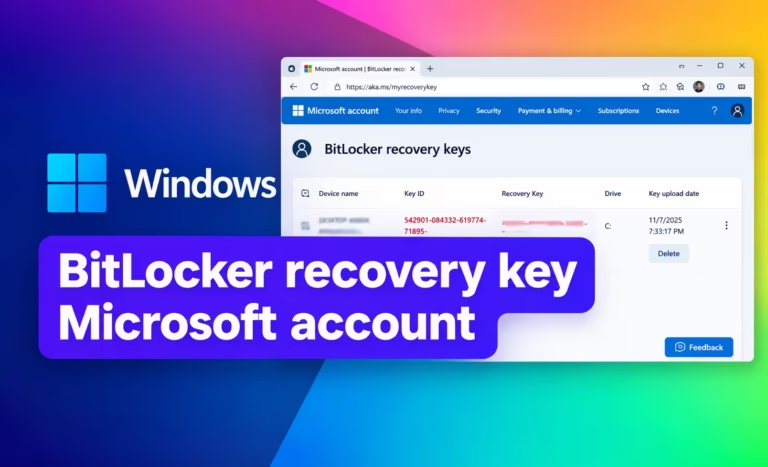
2. Check Your Microsoft Account
If you use a personal Microsoft account on the Windows PC, this is usually the first place to check.
From another phone, tablet, or computer, open Microsoft’s BitLocker recovery-key page:
Microsoft BitLocker recovery keys
Sign in with the Microsoft account associated with the PC.
Look through the listed recovery keys and compare their Key ID with the first eight characters you recorded from the BitLocker recovery screen.
When you find the matching key, use its 48-digit recovery key on the locked PC.
Which Microsoft account should you use?
If you have more than one Microsoft account, try the account you normally use to sign in to Windows.
Also consider whether someone else originally configured the computer.
Microsoft notes that if the PC was set up by another person, or BitLocker was enabled by someone else, the recovery key may be stored in that person’s Microsoft account.
This is especially important for:
- A computer bought used
- A family computer configured by another person
- A PC originally set up by a parent, partner, friend, or technician
- A computer that was transferred from another user
On Windows 11 version 24H2 and later, the BitLocker recovery screen can also show a hint for the Microsoft account associated with the recovery key when the key is backed up there.
Related guide: Microsoft Account-specific BitLocker recovery.
3. Check Your Work or School Account
If the computer has ever been connected to a company, school, or other organization, the BitLocker recovery key may be stored with the organization’s account.
This is particularly common on organization-managed Windows computers.
From another device, open:
Microsoft work or school BitLocker recovery
Sign in using your work or school account.
Depending on your organization’s configuration, you may be able to:
- Select Devices.
- Find the affected Windows computer.
- Expand the device.
- Select View BitLocker Keys.
- Compare the Key ID with the first eight characters shown on your recovery screen.
- Use the matching 48-digit recovery key.
If you cannot access the key yourself, contact your organization’s IT department.
Your organization may manage BitLocker recovery through Microsoft Entra ID, Microsoft Intune, or another administrative system.
Related guide: BitLocker recovery through Microsoft Entra ID.
4. Look for a Printed Recovery Key
You may have printed the BitLocker recovery key when encryption was configured.
Check places where you keep important computer or security documents, including:
- Computer paperwork
- Device setup documents
- A home filing system
- A safe or secure document folder
- Documents kept by the person who originally configured the PC
The printed recovery information should contain the 48-digit recovery key and an associated Key ID.
Compare the Key ID with the one displayed on the BitLocker recovery screen before entering the key.
Do not assume that the first 48-digit number you find is correct if you have multiple BitLocker recovery keys.
5. Check a USB Drive
A BitLocker recovery key may have been saved to a USB flash drive.
If you have a USB drive that was used when BitLocker was configured, check it.
There are two possibilities.
The USB drive contains the recovery key directly
If the BitLocker recovery process recognizes the USB recovery key, insert the drive into the locked PC and follow the instructions on screen.
The USB drive contains a text file
If the recovery key was saved as a text file, you may need to plug the USB drive into another computer or device to open the file and read the key.
Look for a text file containing the BitLocker recovery information and compare its Key ID with the Recovery Key ID shown on the locked PC.
Security note: Keep recovery keys separate from the computers they protect. Anyone who obtains a valid BitLocker recovery key may be able to unlock the encrypted drive.
6. Search for a Saved Recovery-Key File
BitLocker can also be configured to save recovery information as a file.
If you previously chose Save to a file, check locations where you normally store computer backups or security documents.
Possible locations include:
- Another internal drive
- An external drive
- A USB drive
- A backup folder
- Cloud storage
- A personal document archive
If the encrypted Windows drive is currently locked, remember that a recovery-key file cannot help if the only copy of the file is stored inside the encrypted drive you are trying to unlock.
Microsoft recommends keeping recovery information somewhere accessible separately from the protected device.
7. Someone Else May Have Set Up the PC
This is an easy possibility to overlook.
If you did not originally configure Windows or enable BitLocker, the recovery key may belong to the person who did.
Think about who first:
- Set up Windows
- Created the Windows account
- Added the PC to a Microsoft account
- Enabled BitLocker or Device Encryption
- Installed Windows
- Purchased and configured the computer for you
For example, if a family member configured your laptop and signed into Windows with their Microsoft account, the BitLocker recovery key may be attached to their account rather than yours.
Ask that person to check their Microsoft account using Microsoft’s recovery-key page and compare the Key ID.
8. Check Whether the Computer Is Organization-Managed
If this is a work, school, business, or previously managed computer, do not spend hours searching personal accounts.
The recovery key may have been automatically backed up to the organization’s recovery system.
Contact the organization’s IT or help desk and provide:
- The computer name, if known
- The user’s account
- The first eight characters of the Recovery Key ID
- Any information shown on the BitLocker recovery screen
For Microsoft Entra ID-managed devices, an authorized administrator may be able to retrieve the recovery password.
For traditional Active Directory environments, an administrator may be able to retrieve the recovery password from Active Directory Domain Services.
Related guides:
- Microsoft Entra ID recovery
- Active Directory recovery
Use the Recovery Key ID to Find the Correct Key
If you find multiple BitLocker recovery keys, do not simply try them one by one.
Use the Recovery Key ID.
The BitLocker recovery screen displays a Recovery Key ID. Microsoft recommends recording the first eight characters because this allows you to identify which stored recovery key corresponds to the locked device.
For example:
BitLocker Recovery Key ID:
7F8A91BC-....
If your account contains several keys, look for the one whose ID begins with:
7F8A91BCThen use the corresponding 48-digit recovery key.
Why this matters
A single Microsoft account, organization account, or backup location can contain recovery information for more than one device or more than one recovery event.
The Recovery Key ID prevents you from selecting the wrong key.
If you want to understand exactly what the Key ID means and how to use it when matching keys, see BitLocker Recovery Key ID.
Where Should I Look First?
Use this quick decision guide:
| Your situation | Where to look first |
|---|---|
| Personal Windows PC using a Microsoft account | Microsoft account |
| Windows PC connected to work or school | Work or school account / IT |
| Someone else configured the PC | That person’s Microsoft account or records |
| You remember printing the key | Printed documents |
| You remember saving it to USB | USB drive |
| You remember saving it as a file | Backup, USB, external drive, or cloud storage |
| Company or school-managed computer | IT department |
| Several keys are available | Match the Recovery Key ID |
| Key was never backed up or cannot be found | Recovery/reset options may be required |
The most important thing is to identify how BitLocker was configured on your particular PC rather than assuming every computer stores its key in the same place.
Why Is Windows Asking for a BitLocker Recovery Key?
BitLocker asks for a recovery key when it cannot safely use the normal unlock mechanism.
This is a security feature. BitLocker uses information from the device’s startup environment and security hardware to help determine whether the system is in its expected state.
A recovery request can occur after legitimate changes, including certain:
- BIOS or UEFI changes
- Firmware updates
- TPM changes
- Secure Boot changes
- Boot configuration changes
- Hardware changes
- Motherboard replacement
- Drive movement to another computer
- Other changes to the startup environment
It can also happen because of security-related events.
The important point is that seeing the BitLocker recovery screen does not by itself prove that your computer has been hacked.
If this happened immediately after a BIOS, firmware, hardware, or Windows-related change, that recent event may explain why BitLocker entered recovery.
For persistent recovery loops, however, finding the key is only the first step. That problem requires separate troubleshooting.
Related guide: BitLocker recovery loop and repeated recovery prompts.
What If You Cannot Find Your Recovery Key?
If you have checked the likely storage locations and cannot find a matching recovery key, first make sure you have not overlooked another account or another person who configured the PC.
Work through this checklist:
Check every relevant Microsoft account
If you have multiple Microsoft accounts, check each one that may have been used when Windows was configured.
Ask the original setup person
If someone else configured the computer, ask them to check their Microsoft account or recovery records.
Check work or school accounts
If the device has ever belonged to an organization, contact its IT department.
Check old backups
Look through USB drives, printed documents, external drives, cloud storage, and saved files.
Match the Recovery Key ID
If you find a key, verify its ID before using it.
Do not rely on a Windows password
Your Windows password or PIN is not a substitute for the BitLocker recovery key.
Do not expect Microsoft to generate a replacement
Microsoft states that its support team cannot retrieve, provide, or recreate a lost BitLocker recovery key.
If the drive remains inaccessible and you cannot recover the required key, you may ultimately need to use Windows recovery or reset options. Resetting the PC can remove your files, so this should not be treated as a casual replacement for finding the recovery key.
If your key exists but Windows rejects it, that is a different problem from simply losing the key.
Related guide: BitLocker recovery key not working.
Can Microsoft Recover a Lost BitLocker Key?
No.
Microsoft does not keep a master copy of your personal BitLocker recovery key that support agents can simply give back to you.
The recovery key must have been backed up somewhere when BitLocker or Device Encryption was configured.
Depending on how the computer was configured, that location may be:
- Your Microsoft account
- A work or school account
- Microsoft Entra ID
- Active Directory
- A USB drive
- A saved file
- A printed copy
- Another recovery location selected during BitLocker setup
If no accessible copy exists, the encrypted data may not be recoverable through BitLocker.
That is intentional: BitLocker is designed so that possession of the required recovery information is necessary to unlock protected data.
Windows 11 vs. Windows 10: Is the Recovery Process Different?
The core recovery process is similar on Windows 11 and Windows 10.
In both versions, the important information is the 48-digit BitLocker recovery key and the Recovery Key ID shown during recovery.
The main difference you may notice is the recovery-screen experience.
Starting with Windows 11 version 24H2, Microsoft added a hint on the BitLocker recovery screen when the recovery key is associated with a Microsoft account. This can make it easier to identify which Microsoft account to check.
Whether you use Windows 11 or Windows 10, the safest approach remains the same:
- Record the first eight characters of the Recovery Key ID.
- Identify how the computer was configured.
- Check the most likely recovery-key location.
- Match the Recovery Key ID.
- Enter the corresponding 48-digit recovery key.
BitLocker Recovery Key Questions
Where can I find my BitLocker recovery key?
Check your Microsoft account first if you use a personal Windows PC. If the PC is connected to work or school, check the organization account or contact IT. You should also check printed copies, USB drives, and saved recovery-key files.
How do I get my BitLocker recovery key?
Use the Recovery Key ID on the BitLocker recovery screen to identify the correct key in your Microsoft account, work or school account, or another backup location.
Where is the 48-digit BitLocker key?
The 48-digit recovery key may be stored in your Microsoft account, work or school account, Microsoft Entra ID, Active Directory, a USB drive, a saved file, or a printed copy, depending on how BitLocker was configured.
How do I find my BitLocker key on Windows 11?
If Windows 11 is asking for the key, record the first eight characters of the Recovery Key ID and check your Microsoft account or work/school account first. Windows 11 version 24H2 may also show a Microsoft account hint on the recovery screen.
Can I find my BitLocker recovery key online?
Yes, if it was backed up to an online account. For a personal Microsoft account, use Microsoft’s BitLocker recovery-key page. For a work or school account, use the organization’s recovery-key portal or contact IT.
What if I cannot find my BitLocker recovery key?
Check every Microsoft account that may have been used, ask whoever originally configured the computer, check work or school accounts, search USB drives and saved files, and look for a printed copy. If the key truly was not backed up and cannot be recovered, Microsoft cannot recreate it.
Why is Windows asking for a BitLocker recovery key?
BitLocker can enter recovery when it detects a change to the hardware, firmware, TPM, Secure Boot, boot configuration, or another protected part of the startup environment. This can happen after legitimate maintenance as well as during a potential security event.
Which BitLocker recovery key should I use?
Use the recovery key whose Key ID matches the Recovery Key ID shown on the BitLocker recovery screen. Compare the first eight characters of the ID before entering the 48-digit key.
Is the BitLocker recovery key the same as my Windows password?
No. The BitLocker recovery key is a separate 48-digit recovery password. Your Windows password, PIN, or other sign-in method is not a replacement for it.
Can I bypass BitLocker without the recovery key?
There is no legitimate shortcut that allows you to simply bypass BitLocker encryption and access the protected data without the required authentication or recovery information. If the key is genuinely unavailable, the available recovery options may involve resetting the Windows installation, which can result in data loss.
What Should You Do After Unlocking Your PC?
Once you successfully unlock the PC, do not stop there.
Make sure you have a secure backup of the BitLocker recovery key somewhere separate from the computer.
A good recovery setup gives you more than one safe way to retrieve the key if the PC becomes inaccessible again.
You can also investigate why BitLocker entered recovery. If the prompt appeared after a firmware, BIOS, TPM, Secure Boot, or hardware change, understanding the cause can help prevent repeated recovery prompts.
For future recovery situations, keep the recovery key protected but accessible from another device.
The BitLocker Recovery Path at a Glance
BitLocker is asking for a recovery key
                  ↓
       Record first 8 characters
        of the Recovery Key ID
                  ↓
        How was the PC configured?
                  ↓
     ┌────────────┼────────────┐
     ↓            ↓            ↓
Microsoft       Work/       Physical
account         school      backup
     ↓            ↓         ↓
  Check         Check       Check
  account        IT         print/USB/file
     ↓            ↓            ↓
          Match the Recovery Key ID
                    ↓
          Enter the 48-digit key
                    ↓
               Windows unlocks
If none of the recovery locations contains the matching key, move to the appropriate troubleshooting or recovery path rather than repeatedly trying unrelated keys.
Related BitLocker Recovery Guides
- Find a BitLocker Recovery Key in a Microsoft Account
- Find a BitLocker Recovery Key Without a Microsoft Account
- What Is a BitLocker Recovery Key ID?
- Find BitLocker Recovery Keys in Microsoft Entra ID
- Find BitLocker Recovery Keys in Active Directory
- Find a BitLocker Recovery Key on Dell
- Find a BitLocker Recovery Key on HP and Surface
- Fix a BitLocker Recovery Loop
- What to Do When a BitLocker Recovery Key Is Not Working


This was a useful guide. I like that it covers several places where a BitLocker recovery key might be stored instead of assuming everyone has it in the same location. The step-by-step instructions are easy to follow, and the reminder to keep the recovery key somewhere safe is definitely worth noting. This should save a lot of frustration for anyone suddenly stuck at the BitLocker recovery screen.